> For the complete documentation index, see [llms.txt](https://docs.editran.onesait.com/llms.txt). Markdown versions of documentation pages are available by appending `.md` to page URLs; this page is available as [Markdown](https://docs.editran.onesait.com/documentacion-editran/open-v5.3-en/windows/gestor_claves.md).
# Key Management
Editran gives the user the possibility of using several ways to exchange protected data through the following cryptography modes:
Mode 3.0. Authentication cryptography with DES or RSA algorithm (1024 bits) and with TDES confidentiality (with triple key).
In mode 3.0, the keys for authentication must be exchanged between the endpoints before they can be used.
Mode 4.0. Cryptography with RSA authentication keys of 1024, 2048 or 4096 bits.
The algorithms for data encryption are: TDES (with triple keys) and AES with 128, 192 and 256-bit keys.
In all cases the entities must exchange their respective RSA keys, that is, the exchange is external to the Editran protocol. This exchange has been carried out in various ways; external applications to Editran, email, telephone, etc., which in many cases shows the "weakness of the exchange".
From version 4.1.5 onward, Editran has incorporated a reliable and secure management system to automate the exchange process, avoiding the weakness mentioned, avoiding the display of keys in clear text, and facilitating a reliable incorporation and exchange in both entities.
When new RSA public keys are exchanged, all transmissions (except the initial one) may be signed with some private key for which we know that the corresponding associated public key has been sent to the remote side. That is, in the second exchange, at least the initial one can be used to sign; in the third, the initial or the second, and so on.
In addition, all management has been structured into "subsystems". A subsystem is a group of keys exchanged for a certain remote, group of remotes, or applications.
Each subsystem supports several keys with version 01 to 99 (when they reach that position they wrap around), keeping the last 3. The exchange with the entities will be carried out from an Editran session adapted for that purpose.
## Organization of the graphical interface
The graphical interface is divided into several clearly identified components:
* (1) Subsystem type selection tree
* (2) Subsystem list or lists
* (3) Toolbar
* (4) Menu

As the branches of the tree (1) are expanded, the content of the list (3) is updated with the corresponding subsystems. By selecting a subsystem from the list and right-clicking the menu button, the options that can be performed on the subsystem appear.
Next, we will detail each component of the interface.
### Subsystem type selection tree
\
The tree contains some 'fixed' branches that always exist and other variable branches that are immediately below these and depend on the subsystems that are registered.
The 'fixed' branches have the following appearance:
* ***RSA Keys*** (Shows all RSA subsystems)
* ***Non Own*** (Shows RSA Remote subsystems)
* ***Own*** (Shows RSA Local subsystems)
* ***Remotes*** (Shows the remotes registered in editran/G and the subsystems associated with each remote.
For example, if we click on ***RSA Key*** automatically the subsystem list is updated to show all RSA subsystems. If below RSA we click ***Own*** the local environments that we have registered with local subsystems appear. Clicking on a subsystem will show in the list the associated remote.
### Subsystem list or lists
In this part of the interface a list appears with the subsystems that meet the requirements selected in the tree, except when RSA Own Keys are selected.
In that case two lists appear instead of one. The list in the upper part shows the Own Keys, that is, keys that have not yet been assigned to remotes (see section [Generation and Sending of a Local RSA Key](#generación-y-envío-de-una-clave-local-rsa)) and the list in the lower part the RSA local subsystems, that is, the keys that have already been assigned to remotes.
### Toolbar
The toolbar contains buttons that perform practically all the operations that can be carried out on the subsystems:

Depending on the tree selection and the subsystem in the list, some of the buttons will appear disabled.
Next, the functionality of each of the toolbar buttons will be briefly described and the section where the triggered effect is detailed in depth will be indicated.
#### Modify Subsystems

When clicked, the dialog of the *Subsystem Properties* selected in the list appears.
#### Delete Subsystems

The button is active only when a Subsystem is selected. When clicked, the selected subsystem in the list will be deleted, after confirmation.
#### Sending the own public key

The button is active only when an RSA Local Subsystem is selected. When clicked, it generates an exchange file with the key that has just been generated (in state ***Generated***) and it will be sent automatically by Editran's TELEGC application.
#### Update the key of an RSA Local Subsystem

The button is active only when an RSA Local Subsystem is selected. When clicked, the subsystem key will be updated with the active version of the associated Own Key.
#### Insert Remote File

When clicking the button, a dialog appears indicating the Editran/G Presentation for which receipt is requested:

The file, received from a remote, may be:
* An RSA public key from a Remote.
* A confirmation resulting from the incorporation of an RSA key on a remote.
#### Create new Own key

The button is active only when an Own Key is selected. When clicked, the New Own Key dialog is displayed. For more information, see the section [Creation of an Own RSA Key](#creación-de-una-clave-propia-rsa).
#### Show RSA Own Keys

When clicking the button, the tree selection is automatically placed on the RSA Own Keys. In this way we can see the Own Keys in the upper list and the RSA Local subsystems in the lower list.
#### Modify an Own Key

The button is active only when an Own Key is selected. When clicked, the Own Key Properties dialog is displayed. For more information, see the section [Modification, Consultation and Deletion of an Own Key](#modificación-consulta-y-eliminación-de-una-clave-propia).
#### Delete an Own Key

The button is active only when an Own Key is selected. When clicked, an RSA Own Key will be deleted, after confirmation. If there are RSA Local subsystems associated with that Own Key, the Own Key cannot be deleted.
#### Generate a new Version of the Key

The button is active only when an Own Key is selected. When clicked, an RSA key pair will be generated and the version stored in the Own Key will be increased. For more information, see the section **Generation of a new version of a Key** RSA.
#### Update and Refresh of data

Clicking the button will refresh all the information in the tree and in the list(s).
## RSA key exchange
RSA keys are asymmetric cryptographic keys. Asymmetric cryptography is, by definition, that which uses two different keys for each user, one for encryption called the public key and another for decryption, which is the private key. The birth of asymmetric cryptography came from looking for a more practical way to exchange symmetric keys.
Currently asymmetric cryptography is widely used; its two main applications are symmetric key exchange and digital signature.
In this section you will see how to exchange an RSA public key with a remote and how to insert an exchange file generated by another remote using Editran/G.
### Generation and Sending of a Local RSA Key
RSA keys, being asymmetric keys, can be exchanged with different remotes without danger, since what is exchanged is the public key. The private key remains only in the system where it was created and thus there is no possibility that the data can be decrypted by a third party.
For this reason there are the ***RSA Own Keys*** of Editran/G. Through the RSA Own Keys a series of functionalities common to all remotes using that key are managed, such as:
* Generation of new versions of the key (new public-private key pairs)
* Activation of one version or another.
* Management of the Local Code and Subsystem.
An own key cannot be used if it has not been exchanged with a remote. For that, there is the possibility of associating an Own Key with a Remote, creating a ***RSA Local Subsystem***. Once associated, the exchange file can be generated and sent to the remote so that it incorporates our public key.
Next, all the steps necessary to generate and send an RSA key will be described in detail.
#### RSA Local Key
As pointed out in the previous section, an RSA Local Key serves to manage functionalities independent of the remotes and to be able to generate new RSA keys.
**Creation of an Own RSA Key**
To create a new Local Key, the menu *RSA Own Keys/New Own Key*:

The configuration dialog of **New Own Key**:

The fields that appear are:
* **Description**: It is a merely informative field.
* **Local**: You must enter the Local Environment assigned to Editran.
* **Subsystem**: One-character identification of the key type. For each Local Environment, it may have different subsystems to achieve simpler operation (test subsystem, production subsystem, etc.)
* **Service Application**: Editran/G application that will be used to send the exchange file. It is recommended to use the 'TELEGC' application.
* **Key length:** A size from 1024 to 2048 or 4096 is allowed,
* **Key file labels**: Label with which the public key will be stored. It is recommended not to modify this value unless you know in depth the problems that may arise.
Once all the fields have been filled in, pressing OK will automatically create a public-private key pair that will be version 1 of the recently configured Local Key.
**Modification, Consultation and Deletion of an Own Key**
To consult or modify an own key, first we must position ourselves so that we see the list of own keys, simply by clicking in the tree *RSA Keys/Own* or through the menu *RSA Own Keys/Show Own Keys:*

We will see two lists. The upper one contains the RSA Own Keys and the lower one the RSA Local Subsystems (the Own Keys associated with a Remote).
By double-clicking on the Own Key we want to Modify/Consult, the Own Key properties dialog will appear with the data we previously registered (see section [Creation of an Own RSA Key](#creación-de-una-clave-propia-rsa)), in addition to information about the generated RSA key and different buttons to consult the generated public key and generate a new version of the key:

From this dialog some of the parameters that we previously entered when registering the Own Key can be modified. It is not recommended to modify the service application 'TELEGC'.
Also, from the same dialog the following operations can be performed on the public key:
* Consult the generated public key.
* Generate a new pair of RSA keys that will constitute a new version of the Own Key.
**Consultation of the generated public key**
When pressing the button *Consult* of a version of the Own Key dialog we will see its public key:

This functionality is useful to compare the own local key, which we have generated and remains in our system, with the RSA Remote Key that the remote will have inserted in its system, incorporating the exchange file that we will have generated.
**Generation of a new version of an RSA Key**
There are three ways to generate a new version of an RSA Key:
* By pressing the button *Generate New Version* of the Own Key consultation dialog
* Selecting the menu: *Own Keys/Generate New Version of the Key* after selecting the own key in the list.
* By right-clicking on the Own Key from which we want to generate a new version and selecting *Generate New Version of the Key*.:

After confirming that a new version is to be generated, a process of creating a new RSA key pair begins. A new version will be assigned to the new key pair and it will show us the version that has been assigned, making it possible to keep or increase the key size.

After asking us to confirm the changes in the generation of the new key, we will finally be able to check that there are two versions:

Up to three versions of a key can be stored and the list shows the versions that are currently being stored. We see that version 1 is stored in the first key and version 2 in the second. In addition, we see an 'A' in parentheses; this indicates that version 2 is the active version.
**Active Version of an Own Key**
An own key can store up to three versions (three RSA key pairs), however, only one of them can be active. The active version is the version that will be exported when associating the key to a remote. When a key is activated, the other two (if any) will be automatically deactivated.
Exceptionally, the operator can manually activate a version of the key. To do this, from the Own Key management dialog (**Modification, Consultation and Deletion of an Own Key**) click on the *Button* of the version of the key that you want to activate.

**Association of Keys to Remotes**
Once we have an Own Key, we will have to create the RSA Local Subsystem that associates said key with a Remote Code. The same key can be sent to different remotes; each Local Subsystem records with which entities it has been exchanged, and in case several versions exist, which one is active with each remote entity.
To associate an Own Key with a remote we will have to select the own key from the list of Own Keys that we want to assign and with the right button select *Assign a Remote*.
The dialog for Assigning Remotes to Own Keys appears:

In the drop-down list of Editran/G Remotes the remote codes that are registered appear. If the remote code has not yet been registered, the field '*Selected Remote*' can be filled in with the remote code you want to assign to the Own Key.
Once the remote is assigned, a new RSA Local Subsystem will automatically be generated.
Then, you are given the option to send the key to the remote at that moment:

Press *No* if you do not want to continue with the exchange of the key at that moment. You can resume it whenever you want. If we press *Yes* the sending steps will continue.
#### RSA Local Subsystem
As explained earlier, a local subsystem is created by associating an RSA Own Key with a remote.
In this section you will see how to send the generated key to the remote and what other actions can be performed on the subsystem.
**Exchange of the own key**
The exchange of an own key can be initiated in several ways:
* When assigning a remote to an Own Key, as indicated in **Association of Keys to Remotes**
* At any time using the toolbar, as indicated in the section **Sending the own public key**
* Selecting the RSA local subsystem from the list and with the right button choosing in the context menu that appears:

In any of the cases, when this option is selected, the program performs the steps that apply to the state in which the subsystem is. On the screen the state ***Generated*** (G) corresponds to a key associated with a remote and pending sending. In this case the first step is the *generation of the own key export file*:
> 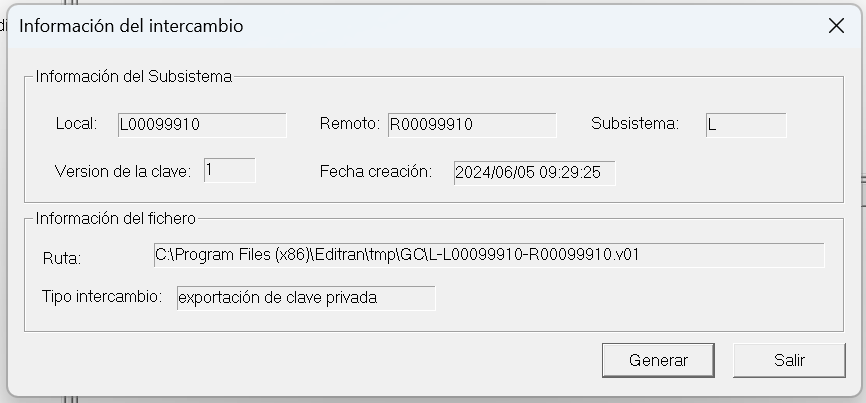 The dialog shows the information of the exported key: information about the subsystem and the file that will be transmitted to the remote entity. Press *Generate* to create the file in the indicated path. If the action finishes correctly, the next step will be the *transmission through Editran*:

If *Cancel* is pressed, the emission is not carried out, and the local subsystem will show that the state is *"Generated the Key Sending File (F)"*.

In this state, if the option *"Exchange of the own key"*is selected again in the context menu, the transmission dialog is shown again indicating the Editran/G Presentation and the file to be sent. If we now press "Send", the dialog will show the status of the transmission performed by Editran.
If the transmission fails, the reason for the error can be viewed in the dialog:

And the key will remain in state *"Error sending the Key File (E)"*.

Once the problem has been solved, the sending can be attempted again by selecting again *"Exchange of the own key"*. The following window shows an example of a transmission completed successfully. In this case, the state of the key will change in the list to *"Key File Sent (S)"*.

In the dialog of *Subsystem Properties* (see section [Modification, Consultation and Deletion of a Local RSA subsystem](#modificación-consulta-y-eliminación-de-un-subsistema-local-rsa)) we will see the status and creation date of the key and of the status modification:

**Receive confirmation from remote entity**
Once the remote has received our public key it will send us a confirmation file. This file indicates that the remote incorporated the key correctly and thus activates the key so that it can be used with that remote.
When using Editran as the transmission mechanism, the receipt of the confirmation is automatic, and normally after a few minutes the key appears as "*Active"* without having to take any action.
However, if after some time the subsystem remains in state *"Key file sent (S)"* it is possible that the remote entity has some problem connecting to its Editran. In these cases, the confirmation can be received from Editran/GC. This can be done in two ways:
With the local subsystem selected, choose the option *"Exchange of own key"* in the context menu. Given the state of the key, this dialog will appear to confirm whether you want to request receipt of the confirmation:

When pressing *"Yes"* the request to Editran is launched and its progress is shown in the Transmission dialog

If it is received correctly, the dialog with the details of the received information is shown, where you can see the full path of the received file and the type of exchange: confirmation in this case.

You now have a key *"Active"* for that subsystem with that remote. This means that subsequent exchanges could already be signed, since, having exchanged the public key, it can be used to sign future key transmissions.
In this case the subsystem should be modified so that it is signed with subsystem 'L':

Another possibility to receive the confirmation would have been to select in the menu *"Systems > Receive Key File/Remote Confirmation"*, and select in the transmission window the Presentation associated with that subsystem.

**Subsystem key update**
If a new version of an Own Key has been created, the subsystems associated with that Own Key will have to be updated.
There are three ways to update the version of a local subsystem. Remember, it must be previously selected in the list:
* By pressing the button *"Update the local key of the RSA Local Subsystem"*.
* Selecting the menu *"Subsystems > Update the version of the own key"*.
* Select "*Update the version of the own key"* in the context menu that appears when right-clicking on the list of RSA local subsystems.

When updating, the version of the key that is active within the Local Key will be copied to the subsystem. Afterwards, the exchange file will have to be generated and sent to the remote.
**Key Version in flight**
There can only be one key version in flight within the same subsystem. Therefore, while there is a key in flight, the creation of more key versions will not be allowed.
A key is considered *in flight* when it is in the activation process, that is, when the key already exists, but it has not yet been sent to the remote and its confirmation file has not been received. Once confirmed, the key changes to state "*Active*" and ceases to be in flight, allowing new versions to be generated.
A version of the key that is *in flight* may stop being so *Activating it* or *Cancelling it* manually.
### Generation of an RSA Remote Subsystem and sending of the confirmation
Remote subsystems are created automatically upon receiving the keys of other Editran entities. They are generated with the data indicated by the remote in the key exchange file.
Normally the exchange of the remote key is initiated from the owning entity, so from Editran/GC you only have to check that the received keys appear in the "Not Own" subsystem list.
Another possibility is that the remote informs you that it already has it generated and that it requests receipt from its Editran/GC. Next, this case is described.
#### Receive Remote Key File
When selecting the menu *"Systems > Receive Key File/Remote Confirmation"* the dialog to choose the remote entity to which the reception request is made will appear:

The progress of the reception is notified in the transmission window, and if it finishes correctly, the information of the incorporated file appears:

Editran/GC when processing the remote key file:
* checks the signature of the exchange file (if applicable). The first time a subsystem is exchanged with a remote, the file is not signed because there is no key with which to verify its signature. In successive exchanges of key versions, the exchange file may be signed.
* if the subsystem that comes in the file does not exist, it is automatically generated with the received data.
* the remote public key is extracted and saved in the key repository.
* Transmission through Editran is automated to generate and send the confirmation to the remote automatically.
Since key exchange is an automated process, the most common thing is that at this point in the list of *"Not Own Keys"* the received key appears as "Active (A)".

When the remote subsystem is created from the exchange file, some field such as "Description" is not filled in. The user can edit the subsystem to modify it.
If the automated process of a remote key exchange fails, the received key may remain in one of these states:
* *Remote Key Inserted (I)*: The key has been received and the generation of the confirmation file has failed.
* *Confirmation File Generated (F):* The sending of the confirmation has not been requested.
* *Error sending the Confirmation File (E):* The confirmation transmission has not been completed.
In all cases, whenever the exchange has not been completed correctly, it can be retried from the point where it stopped. The Editran/GC application will resume operation, taking into account the state of the subsystem. The following section explains the operation in these cases with an example.
#### Remote key exchange
The full exchange of a remote key consists of incorporating the received key file and generating a confirmation file that will be sent to leave the key *"Active"*. Occasional failures in the automatic process can leave the key in an intermediate state. In the example, we have caused an error to leave the key in state "*Remote Key Inserted (I)*".

In these cases, once the reason that generated the error has been analyzed and resolved (possibly an error in the Editran configuration), the exchange can be resumed from the graphical interface. To do this, in the remote subsystem's context menu select the option *"Remote key exchange".*

In our case, given the current state, the application knows that the next step is to generate the confirmation, so the information for the file that will be created is displayed. Click *"Generate"* to confirm.

If it is generated correctly, the exchange will continue with the sending of the file:

And when the transmission finishes, you will see that the key appears in the list as *"Active (A)"*.

### Other common operations on subsystems
Next, common features of RSA Local and Remote subsystems will be detailed.
#### Modification, Consultation and Deletion of a Local RSA subsystem
To see all RSA local subsystems, we can select the appropriate branch in the tree ([Modification, consultation, and deletion of an own key](#modificación-consulta-y-eliminación-de-una-clave-propia)) or click the *Show RSA Own Keys* button on the toolbar.
To delete a subsystem, select it from the list and press \
The dialog shows the information of the exported key: information about the subsystem and the file that will be transmitted to the remote entity. Press *Generate* to create the file in the indicated path. If the action finishes correctly, the next step will be the *transmission through Editran*:

If *Cancel* is pressed, the emission is not carried out, and the local subsystem will show that the state is *"Generated the Key Sending File (F)"*.

In this state, if the option *"Exchange of the own key"*is selected again in the context menu, the transmission dialog is shown again indicating the Editran/G Presentation and the file to be sent. If we now press "Send", the dialog will show the status of the transmission performed by Editran.
If the transmission fails, the reason for the error can be viewed in the dialog:

And the key will remain in state *"Error sending the Key File (E)"*.

Once the problem has been solved, the sending can be attempted again by selecting again *"Exchange of the own key"*. The following window shows an example of a transmission completed successfully. In this case, the state of the key will change in the list to *"Key File Sent (S)"*.

In the dialog of *Subsystem Properties* (see section [Modification, Consultation and Deletion of a Local RSA subsystem](#modificación-consulta-y-eliminación-de-un-subsistema-local-rsa)) we will see the status and creation date of the key and of the status modification:

**Receive confirmation from remote entity**
Once the remote has received our public key it will send us a confirmation file. This file indicates that the remote incorporated the key correctly and thus activates the key so that it can be used with that remote.
When using Editran as the transmission mechanism, the receipt of the confirmation is automatic, and normally after a few minutes the key appears as "*Active"* without having to take any action.
However, if after some time the subsystem remains in state *"Key file sent (S)"* it is possible that the remote entity has some problem connecting to its Editran. In these cases, the confirmation can be received from Editran/GC. This can be done in two ways:
With the local subsystem selected, choose the option *"Exchange of own key"* in the context menu. Given the state of the key, this dialog will appear to confirm whether you want to request receipt of the confirmation:

When pressing *"Yes"* the request to Editran is launched and its progress is shown in the Transmission dialog

If it is received correctly, the dialog with the details of the received information is shown, where you can see the full path of the received file and the type of exchange: confirmation in this case.

You now have a key *"Active"* for that subsystem with that remote. This means that subsequent exchanges could already be signed, since, having exchanged the public key, it can be used to sign future key transmissions.
In this case the subsystem should be modified so that it is signed with subsystem 'L':

Another possibility to receive the confirmation would have been to select in the menu *"Systems > Receive Key File/Remote Confirmation"*, and select in the transmission window the Presentation associated with that subsystem.

**Subsystem key update**
If a new version of an Own Key has been created, the subsystems associated with that Own Key will have to be updated.
There are three ways to update the version of a local subsystem. Remember, it must be previously selected in the list:
* By pressing the button *"Update the local key of the RSA Local Subsystem"*.
* Selecting the menu *"Subsystems > Update the version of the own key"*.
* Select "*Update the version of the own key"* in the context menu that appears when right-clicking on the list of RSA local subsystems.

When updating, the version of the key that is active within the Local Key will be copied to the subsystem. Afterwards, the exchange file will have to be generated and sent to the remote.
**Key Version in flight**
There can only be one key version in flight within the same subsystem. Therefore, while there is a key in flight, the creation of more key versions will not be allowed.
A key is considered *in flight* when it is in the activation process, that is, when the key already exists, but it has not yet been sent to the remote and its confirmation file has not been received. Once confirmed, the key changes to state "*Active*" and ceases to be in flight, allowing new versions to be generated.
A version of the key that is *in flight* may stop being so *Activating it* or *Cancelling it* manually.
### Generation of an RSA Remote Subsystem and sending of the confirmation
Remote subsystems are created automatically upon receiving the keys of other Editran entities. They are generated with the data indicated by the remote in the key exchange file.
Normally the exchange of the remote key is initiated from the owning entity, so from Editran/GC you only have to check that the received keys appear in the "Not Own" subsystem list.
Another possibility is that the remote informs you that it already has it generated and that it requests receipt from its Editran/GC. Next, this case is described.
#### Receive Remote Key File
When selecting the menu *"Systems > Receive Key File/Remote Confirmation"* the dialog to choose the remote entity to which the reception request is made will appear:

The progress of the reception is notified in the transmission window, and if it finishes correctly, the information of the incorporated file appears:

Editran/GC when processing the remote key file:
* checks the signature of the exchange file (if applicable). The first time a subsystem is exchanged with a remote, the file is not signed because there is no key with which to verify its signature. In successive exchanges of key versions, the exchange file may be signed.
* if the subsystem that comes in the file does not exist, it is automatically generated with the received data.
* the remote public key is extracted and saved in the key repository.
* Transmission through Editran is automated to generate and send the confirmation to the remote automatically.
Since key exchange is an automated process, the most common thing is that at this point in the list of *"Not Own Keys"* the received key appears as "Active (A)".

When the remote subsystem is created from the exchange file, some field such as "Description" is not filled in. The user can edit the subsystem to modify it.
If the automated process of a remote key exchange fails, the received key may remain in one of these states:
* *Remote Key Inserted (I)*: The key has been received and the generation of the confirmation file has failed.
* *Confirmation File Generated (F):* The sending of the confirmation has not been requested.
* *Error sending the Confirmation File (E):* The confirmation transmission has not been completed.
In all cases, whenever the exchange has not been completed correctly, it can be retried from the point where it stopped. The Editran/GC application will resume operation, taking into account the state of the subsystem. The following section explains the operation in these cases with an example.
#### Remote key exchange
The full exchange of a remote key consists of incorporating the received key file and generating a confirmation file that will be sent to leave the key *"Active"*. Occasional failures in the automatic process can leave the key in an intermediate state. In the example, we have caused an error to leave the key in state "*Remote Key Inserted (I)*".

In these cases, once the reason that generated the error has been analyzed and resolved (possibly an error in the Editran configuration), the exchange can be resumed from the graphical interface. To do this, in the remote subsystem's context menu select the option *"Remote key exchange".*

In our case, given the current state, the application knows that the next step is to generate the confirmation, so the information for the file that will be created is displayed. Click *"Generate"* to confirm.

If it is generated correctly, the exchange will continue with the sending of the file:

And when the transmission finishes, you will see that the key appears in the list as *"Active (A)"*.

### Other common operations on subsystems
Next, common features of RSA Local and Remote subsystems will be detailed.
#### Modification, Consultation and Deletion of a Local RSA subsystem
To see all RSA local subsystems, we can select the appropriate branch in the tree ([Modification, consultation, and deletion of an own key](#modificación-consulta-y-eliminación-de-una-clave-propia)) or click the *Show RSA Own Keys* button on the toolbar.
To delete a subsystem, select it from the list and press \ or \.
To modify or consult a subsystem, double-click the line in the list. The *Subsystem Properties*:

The following operations can be performed from here:
* Change of properties and ***modification of the subsystem***, by clicking the *"OK"*
* ***Consult a version of the key***, by clicking the *"Consult"* button for the key version.
* ***Activate a version of the key***e, by clicking the *"Activate"* button for the key version you want to activate.
* ***Cancel a version of the key***, by clicking the *"Cancel"* button for the key version you want to cancel.
#### RSA key consultation
When pressing the button *Consult* of a version of the consultation dialog *Subsystem Properties* its public key will be displayed:

This functionality is useful to compare the own local key, which we have generated and remains in our system, with the RSA Remote Key that the remote will have inserted in its system, incorporating the exchange file that we will have generated.
#### Manual modification of the state of an RSA key
Manually modifying the state of a key can be a dangerous operation since it can leave the subsystem to which the change is made unstable. It is advisable not to manually modify the state of a key if you do not fully know the effect that the modification may produce.
The Editran/GC application is designed so that the options of *"Own or remote key exchange"* adapt to the state of the key and resume the process from that point.
If there are situations that block the exchange, you can contact the product support team for guidance on the actions to take.
#### Activation and cancellation of an RSA key
Through the *Subsystem Properties* dialog, a version of a subsystem key can be activated or cancelled.
There can only be one version of a key in state *"Active (A)"* in a subsystem. When a key is activated, either automatically or manually, if another key was previously *"Active (A)"*, then it will move to state *"Operational (O)"*. To activate a version of the key, the *"Activate"* button in the *Subsystem Properties*.
A version of a key can also be cancelled. Cancelling the key ensures that the key cannot be used. To cancel a version of the key, the *"Cancel"* button in the *Subsystem Properties*.
## Use of Onesait Editran/GC
Using Editran as the means of transmitting the exchange file greatly facilitates the necessary operation of Editran/GC.
Basically, there are two key advantages:
* Ability to automatically send and receive confirmation and key files from the Editran/GC interface.
* Ability to automatically incorporate, from Editran, through specific user programs, the key file or the received confirmation file.
Below, each of the aforementioned advantages will be explained.
### Automatic sending and receiving using Onesait·Editran
The key exchange requires that Editran have a communication channel with the remote dedicated to this purpose. Editran/GC is responsible for creating the session and presentation based on the subsystem data (local code + remote code + service application or TELEGC).
The only requirement for it to be created correctly is that another session with that remote already exists and can serve as a template for configuring the destination IPs.
#### Onesait Editran/G profiles
The exchange files to be transmitted, both the RSA key file and the confirmation file, have the same format. Below, a table is added showing the Presentation configuration parameters. These are the values with which Editran/GC creates the Presentation and must not be modified:
***
| Direction | Concept | Value |
| ------------ | ------------------------- | ----- |
| Transmission | Compression | Yes |
| Transmission | Alphabet | ASCII |
| Transmission | Application File Format | Fixed |
| Transmission | ASCII/EBCDIC translation | No |
| Transmission | Application record length | 00823 |
| Transmission | Delimiter | None |
| Reception | Translate on reception | ASCII |
| Reception | Delimiter | None |
***
### Automatic Procedure for Onesait Editran
The second advantage is the automatic incorporation of the key exchange and confirmation files that the remote sends us.
Editran has the ability to add user programs that run before and after transmissions. This feature is what is used to automate key exchanges. The product provides specific user programs for these tasks that are set when Editran/GC creates the presentation configuration, and they must not be modified.

## Utilities for managing keys
### gc\_config command
With the **gc\_config** command, you can both create and version an own RSA key as well as create the TELEGC session/presentation to receive the other party's key. In both cases, the command controls the state of the exchange and performs the necessary steps to complete it.
The program syntax is as follows:
```
gc_config. Editran/GC utility for key exchange.
Use: gc_config [-k] [-v] [-l] -r -s
gc_config -R [-l] -r
Sending options:
-k : Generate a new key of length (4096 by default).
-v : Generate a new version of the subsystem.
-l : Editran code of the local entity. Required if multi-environment.
-r: Editran code of the remote entity
-s : New Editran/GC subsystem
Reception options:
-R : Required to indicate that the key will be received.
-l : Editran code of the local entity. Required if multi-environment.
-r: Editran code of the remote entity
```
**Example 1**\
Generation of a 4096-bit RSA key pair (Private + Public) for the local code **P00000020** and the subsystem **N**. In addition, we associate the remote **L0009991099**:
```bash
gc_config -lP00000020 -rL00099910 -sN
```
If the command works correctly, the following message will appear:
```bash
gc_config -lP00000020 -rL00099910 -sN
[L] [Key 0] [Version 1] [State Key Send File Generated]
```
**Example 2**\
Automatic generation of the session and the presentation P00000020-L00099910-TELEGC
```bash
gc_config -R -lP00000020 -rL00099910
```
### gc\_vclaves command
Shows the version information of an Editran/GC subsystem.
```
gc_vclaves. Shows the keys of an Editran/GC subsystem.
Use: gc_vclaves [-L | -R] [-l] [-r] [-s]
Where:
-L : Own subsystem
-R : Remote subsystem
-l : Editran code of the local entity
-r: Editran code of the remote entity
-s : Editran/GC subsystem
```
Example:\
The command `gc_vclaves` invoked without parameters shows the information for all existing subsystems and their active version.
```
gc_vclaves
T Local Remote Sub Active_V
R L00000010 W00000010 N 15
L L00000010 W00000010 N 13
L L00000010 W00000110 N 13
R L00000010 W00000110 A 5
```
### introsec command (for Triple DES 3.0 cryptography)
Adds a new application key to the file `/cfg/ckds.des`.
Usage: `introsec [-g]`
* `-g`: generates the keys randomly; only the label is requested.
* Without `-g`: requests the label and keys manually.
When run, the command asks for:
* **Label**: label of exactly 14 characters to identify the key (e.g.: `LABEL_LOCALC01`).
* **Key #1**: 16 hexadecimal characters (only 0–9 and A–F), for example `A1F1A7C1B2B2A4B2`.
* **Key #2**: 16 hexadecimal characters, to use a double key, in the example `A1F1A7C1B2B2B3B4`.
Example — manually entered key:
```
introsec
introsec [-g]. Incorporation of an Application Key into ckds.des.
Enter the LABEL of the Application Key (14 characters): LABEL_LOCALC01
Type the APPLICATION KEY #1 (16 hex digits): A1F1A7C1B2B2A4B2
Type the APPLICATION KEY #2 (16 hex digits): A1F1A7C1B2B2B3B4
The new Application Key [LABEL_LOCALC01] has been saved correctly in 'ckds.des'.
```
Example — randomly generated key (`-g`):
```
introsec -g
introsec [-g]. Incorporation of an Application Key into ckds.des.
Enter the LABEL of the Application Key (14 characters): LABEL_LOCALC02
APPLICATION KEY #1 (hex): 3170EF4F5BDC5DF2
APPLICATION KEY #2 (hex): 9E6E64B5DAF7130D
The new Application Key [LABEL_LOCALC02] has been saved correctly in 'ckds.des'.
```
### EDItranCript.jar utility (for Triple DES 3.0 cryptography)
This utility is a graphical interface for managing the keys in the file `\cfg\ckds.des`. To run it, the server must have Java 21.
To run it, from the directory `\bin` run:
```
java -jar EDItranCript.jar
```
The following window will appear:

## Appendices
### Subsystem states
Below is a list of all possible states of subsystem keys:
***
| Id | State | Text |
| -- | ---------------------------------- | ---------------------------------- |
| 1 | KEY\_GENERATED | Generated Key |
| 2 | KEY\_OPERATIONAL | Operational Key |
| 3 | KEY\_ACTIVE | Active Key |
| 4 | KEY\_SEND\_FILE\_GENERATED | Key Send File Generated |
| 5 | SENDING\_KEY\_FILE | Sending Key File |
| 6 | ERROR\_SENDING\_KEY\_FILE | Error Sending Key File |
| 7 | KEY\_FILE\_SENT | Key File Sent |
| 8 | CONFIRMATION\_RECEIVED | Confirmation Received |
| 9 | INVALID\_CONFIRMATION | Invalid Confirmation File Received |
| 10 | REMOTE\_KEY\_INSERTED | Remote Key Inserted |
| 11 | CONFIRMATION\_FILE\_GENERATED | Confirmation File Generated |
| 12 | SENDING\_CONFIRMATION\_FILE | Sending Confirmation File |
| 13 | ERROR\_SENDING\_CONFIRMATION\_FILE | Error Sending Confirmation File |
| 14 | CONFIRMATION\_FILE\_SENT | Confirmation File Sent |
| 15 | KEY\_CANCELLED | Key Cancelled |
| 17 | KEY\_NOT\_SELECTED | Key Not Selected |
| 18 | KEY\_SELECTED | Key Selected |
***
The table will be useful for locating each of the states in the following diagram by its identifier.
### State Diagram
#### Own RSA key
State sequence diagram for a key of an own RSA subsystem:

#### Local Key
State sequence diagram for a Local key, both RSA and DES: 
#### Remote key
State sequence diagram for a Remote key, both RSA and DES: 
---
# Agent Instructions
This documentation is published with GitBook. GitBook is the documentation platform designed so that both humans and AI agents can read, navigate, and reason over technical content effectively. Learn more at gitbook.com.
## Querying This Documentation
If you need additional information that is not directly available in this page, you can query the documentation dynamically by asking a question.
Perform an HTTP GET request on the current page URL with the `ask` query parameter, and the optional `goal` query parameter:
```
GET https://docs.editran.onesait.com/documentacion-editran/open-v5.3-en/windows/gestor_claves.md?ask=&goal=
```
`ask` is the immediate question: it should be specific, self-contained, and written in natural language.
`goal` is optional and describes the broader end goal you are ultimately trying to accomplish on behalf of the user. GitBook uses it to tailor the answer towards what is most useful for that goal.
The response will contain a direct answer to the question and relevant excerpts and sources from the documentation.
Use this mechanism when the answer is not explicitly present in the current page, you need clarification or additional context, or you want to retrieve related documentation sections.