> For the complete documentation index, see [llms.txt](https://docs.editran.onesait.com/llms.txt). Markdown versions of documentation pages are available by appending `.md` to page URLs; this page is available as [Markdown](https://docs.editran.onesait.com/documentacion-editran/open-v5.2.1-en/windows/gestor_transmisiones.md).
# Transmission management
Editran/GT (Transmission Manager) allows you to manage editran transmissions in order to carry out editran Presentation Emissions and/or Receipts efficiently and unattended.
Editran/GT is highly configurable to achieve maximum flexibility; it includes a configuration dialog that allows you to define emission windows, search intervals, subsequent processes, retries, etc.
In addition, during emission, editran/GT looks for the files that are registered in editran/G Presentations in order to transmit them, so that when an emission file associated with an editran/G Presentation appears and if it is within the selected time window, the emission of that Presentation will be triggered automatically. This is very useful for automating data transmission when it exists, increasing system efficiency.
Another equally important aspect is the existing connection between editran/GT and the rest of editran. Editran/GT has been designed as the editran Transmission Manager and, as such, it is capable of reading editran/G and editran/P profiles, making it easier to configure editran/GT and allowing the consultation of editran characteristics, such as the status of presentations, which can help determine the cause of a possible incident in an editran send or receive operation.
Finally, it is worth noting that there is a log file and a status file specific to editran/GT which, together with the log and status files already existing in editran/P and editran/G, form a complete set of important information both about successful transmissions and about incidents in any of them
## Description and functionality
Editran/GT includes both highly detailed configuration functionality for scheduling Emissions and Receipts, and the ability to consult information about transmissions that have been carried out (sent files, transmission start and end date-time, current status of each transmission...), as well as transmissions that have ended with some kind of error.
## editran/GT service
Editran/GT runs as a Windows service on operating systems that support Services. It is necessary to install the service in the system and configure it to start automatically or manually, as decided.
* **Service installation**
To install the service, if it is not already installed, run the following command as administrator from Command Prompt (cmd) positioned in the editran installation directory:
`editrangtserv -install`
This command installs editran/GT as a system Service, started by the *Local System Account* and as the Startup type *"Manual"*.
To verify that the service has been installed correctly, open the Services window and look for the Service name **EDItranGTServ**:

It can also be installed with an editran service dependency using the following command:
`editrangtserv -installdepend`
The editran Service dependency is checked in the Dependencies section.

* **Service configuration**
By double-clicking or choosing the Properties option from the context menu on the Service **EDItranGTServ** we access the service configuration parameters:

To change the startup type so it starts automatically with the server, select the **Automatic Startup Type**.
To change the service logon user, select the tab **Log On**:

Select the option **This account:** and assign the local or domain user you want.
* **Remove the service**
To remove the EDItranGTServ service, run the following command from Command Prompt (cmd) in the editran installation directory
`editrangtserv -remove`
This command removes EDItranGTServ from the list of services installed on the system.
***Important**: If you have Windows Vista, 7, 8, 2008 or 2012, you must run Command Prompt (cmd) with the "Run as Administrator" option from the context menu in order to remove the service.*
It is recommended to have the Windows Services window closed before running the command.
## editran/GT Menu
Once editran/GT has started, you can use the application **EDItranGT Menu** (executable file **menugt.exe**), which will open an editran/GT icon in the Notification area of the Windows taskbar:

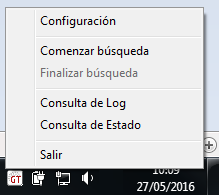
Right-clicking the editran/GT icon displays the context menu with the available options:

The Menu/GT depends on the Service, that is, Menu/GT requires the Service to be running in order to open; if it is not, the following message will be shown:

At the same time, the editran/GT Service can be running without the Menu/GT being open.
If you try to open the Menu/GT when one is already open, the following message will appear:

### Service configuration
By selecting the 'Configuration'->'Service' label from the editran/GT menu you can view and define the following options:

In order to modify these values, you must have started the EDItranGT Menu application (executable file menugt.exe) as administrator.
#### Search interval
From time to time, editran/GT queries all associated editran/G Presentations, looking for those that match the configured criteria, in order to request an Emission or a Receipt from editran.
That search time interval is configured by assigning a value in the 'File search interval' field.
In the example, 60 seconds have been defined; that is, every minute editran/GT will look for the Presentations that meet the Emission and/or Receipt conditions and will request editran to execute the transmission.
This configuration is saved in the following Windows registry key:
`HKEY_LOCAL_MACHINE\SOFTWARE\INDRA\EDItranGT\Intervalo`
And on 64-bit Operating Systems:
`HKEY_LOCAL_MACHINE\SOFTWARE\Wow6432Node\INDRA\EDItranGT\Intervalo`
#### Auto-start
Editran/GT can be installed as an automatic startup service; in this case editran/GT will start when the machine starts up.
However, editran/GT may be running and the search for Presentations to Send or Receive may not have started.
If we want the search for Presentations to Send or Receive to start at the same time as the editran/GT service starts, we must check the 'Auto-start' flag in the configuration dialog.
By default the configuration is a **Search interval** of 60 seconds and **Auto-start** disabled. When a change is made to this configuration, it is saved in the following Windows registry key:
`HKEY_LOCAL_MACHINE\SOFTWARE\INDRA\EDItranGT\AutoStart`
On 64-bit Operating Systems it is saved here:
`HKEY_LOCAL_MACHINE\SOFTWARE\Wow6432Node\INDRA\EDItranGT\AutoStart`
#### Alert program
It is possible to configure Editran/GT to invoke a customer-specific program each time a presentation remains in the "No retries error" state.
To do this, that program must be included in the "Alert program" section:

When a change is made to this configuration, it is saved in the following Windows registry key:
`HKEY_LOCAL_MACHINE\SOFTWARE\INDRA\EDItranGT\ProgramaAlerta`
On 64-bit Operating Systems it is saved here:
`HKEY_LOCAL_MACHINE\SOFTWARE\Wow6432Node\INDRA\EDItranGT\ProgramaAlerta`
***IMPORTANT**: If you have Windows 8, Server 2008 or later, you must add the user or group of users who will use the editran/GT menu to the Permissions section of the **Windows Registry** in order to modify the configuration stored in it.*
\*To do this, with an administrator user on the machine, you must right-click the EDItranGT key, click Permissions, click the Add button and add the user or group of users who will work with editran, setting the Full Control permission.
### Associated presentations configuration
By selecting the 'Configuration'->'Presentations' label from the editran/GT menu, a dialog is displayed with the list of registered associated presentations in editran/G.

We can expand the list to see all editran/G presentations:

We also see from the drop-down list the editran/G Presentations that are associated with editran/GT. In the example, the Presentation **WIN-GT-02** from editran/G is associated only for Emission with editran/GT.
editran/G presentations that are not associated with editran/GT will not be transmitted automatically; they must be transmitted manually using editran menus and commands; only the Presentations associated with editran/GT will be transmitted automatically.
If we want to assign an editran/G Presentation to editran/GT, first select it in the drop-down list and then check the 'Associated Presentation' flag:

A window will appear asking whether you want to Associate the Presentation:

In this case we are associating the Presentation **WIN-GT-02** with editran/GT. Clicking the 'Yes' button will associate the Presentation and we will see the following dialog:

A Presentation Associated with editran/GT must be used to request Emissions, Receipts, or both from editran by selecting at least one of the two flags:
* Emission: 
* Receipt: 
When selecting or deselecting the 'EMIT' or 'RECEIVE' flags, the parameters associated with Emission or Receipt respectively will be shown or hidden.
#### Emission parameters
Emission presentations, in addition to being schedulable for sending through a time window, are emitted only when the emission files exist.

**Emission files**
Editran/GT reads directly from the editran/G profiles and shows the first file that is registered in the profiles of the selected editran/G Presentation:

The existence or not of the emission file (which may contain wildcards) is what will trigger the Emission request. That is, if a Presentation is configured to Emit several files, emission will not start until the expected file appears; if there is a time window, not only must the file appear, it must also fall within the time window.
Although the first Emission file is shown, editran/GT reads and will wait for the appearance of any of the other defined files.
This is a read-only parameter; it cannot be modified from editran/GT and is shown for information purposes only; if you want to modify it, you must use the editran/G Menu.
**Post-Emission process**
To prevent a successfully transmitted Emission from being sent again, the emission file must disappear; this can be achieved in two ways:
* Delete the emission files that were successfully transmitted.
* Move the successfully transmitted files to another directory (and rename them if desired).
* Execute process.

* **Delete the files from the emission source directory**
If the option **Delete**is selected, the emission files **transmitted** by editran will be deleted after successful transmission.
* **Move the files from the emission source directory to the directory**
You must specify the directory to which you want to move the files that have been emitted and, if desired, rename the emitted file by adding the system Date-Time by checking **Rename** **the emitted file by adding the system Date-Time**. If the check is not selected, files with the same name will be overwritten.
* **Execute process**
These batch programs will be provided by the user, located in the editran installation directory, and are executed after emitting files; they must also include moving or deleting the transmitted files.
By default, when editran finishes a transmission successfully, but the emitted files could not be moved or deleted correctly, editran/GT leaves that presentation as finished, which can cause the files to be sent several times.
If you want editran/GT to leave the presentation as finished with error in this case, you must add in the Windows registry, in the EDItranGT key, a **String value** (REG\_SZ) with value **1** called **ErrorEnPosterior**.
The editran/GT Windows registry key is located at:
32-bit Operating Systems:
`HKEY_LOCAL_MACHINE\SOFTWARE\INDRA\EDItranGT\`
64-bit Operating Systems:
`HKEY_LOCAL_MACHINE\SOFTWARE\Wow6432Node\INDRA\EDItranGT\`
**Time window**
It is possible to schedule the sending of files by editran to one or several specific times. That is, even if a file exists at a certain time, we can configure it so that it is not sent when it appears, but rather sent in a period of time known as a **Time window**.
If you want to use the **Time window** feature of editran/GT, you must select the Check shown below:

To configure Time Windows, click the **Window Query**. The following dialog will appear:

* **Add an Emission Time Window**
To add a new *time window* we must first fill in the Hour-Minute-Second *'From'* and *'To'*. For example, if you want to add a time window from 1:30 in the morning to 06:45, you would define:

By clicking the button *Add* we will see that a new *time window* has been added to the list:

More Time Windows can be added if desired:

To save and return to the configuration dialog, click the *OK*.
* **Modify an Emission Time Window**
To modify an *time window* existing one, first we must select the window to modify in the list and then modify the 'From' or 'To' configuration as desired.
For example, to modify the window created earlier so that it ends at 6:45 in the morning, select it and configure it to end at 8:30:

Finally, click the *Modify* button to change the parameters of the *Window:*

To save and return to the configuration dialog, click the *OK*.
* **Delete an Emission Time Window**
Select the time window you want to delete and click the *'Delete'*. After accepting the operation through a confirmation dialog, the *window* will be removed from the list.
Keep in mind that if the list does not contain any *time window* and the flag *'Use time window*' is checked, that Presentation will never be emitted.
To save and return to the configuration dialog, click the *OK*.
* **Only one Emission per Emission Time Window**
It may be desirable to request an emission from editran for each *Time window*, even if there are new files to be emitted.
For example, if in the editran/G Presentation **WIN-GT-02** we want it to be sent at night (from 01:00:00 to 06:45:00, for example) and only once in that Time Window, we will check the option *Only one Emission for each Time Window*:

* **Advanced Options**
In the advanced options of an emission, 2 parameters can be specified
* Day to be sent (Monday, Tuesday,.... Sunday)
* Day number of the month to be sent (1,2,3.....30/31)
It is important to note that if there is a schedule specifying both the "day of the week" and the "day number of the month", the emission will only be performed when the selected "day of the week" also matches the day number of the month.

To save and return to the configuration dialog, click the *OK*.
**Retries**
There is an option in editran/GT to retry an Emission by editran that has ended with an error. In addition, you can specify the number of retries you want to perform.
The parameter "Retry interval (minutes)" sets how often we want to execute the emission request again, in the event of an error during the initial request.

In this case, Editran/GT will retry the emission 1 time, will wait for editran to finish its own retries (defined in the session configuration in the editran/P Menu), will wait 5 minutes to retry again, and so on up to 2 more retries.
It may happen that a Presentation has not been sent after retrying the indicated number of times. In that case, the presentation will move to a state *'Finished with Error. No Retries'*, a presentation in that state is considered to require at least one manual operation in order to be emitted (configuration failure, prolonged network problem, etc.); for that reason this Presentation will not be emitted again from editran/GT until the state of the editran/GT Presentation is manually initialized using the button *Initialize Presentation*.
**States**
The configuration dialog shows the emission status of a Presentation associated with editran/GT, as well as the date and time at which that status was assigned:

For more information about editran/GT states, see chapter **4.4 Status Query**.
#### Receipt parameters
Section of the configuration dialog corresponding to the Receipt parameters of editran/GT:

**Time window**
To configure the Receipt Time Window(s), click the 'Window Query' button within the Receipt parameters in the Query dialog.

The following Time Window dialog will appear:

See the description of Time Windows in section [Time window](#ventana-horaria).
One difference between the *Time window* of **Transmission** and **Reception** is that its use in Emission is optional and in Receipt it is mandatory, since in the Emission request it can be carried out when the Emission file appears; however, in Receipt this is not possible.
**Retries**
See the description of retries in the section [Retries](#reintentos).
**States**
See the description of States in the sections [States](#estados) and in [Status Query](#consulta-de-estado).

### Start search / End search
Editran/GT has two operating modes:
* **Searching for Transmissions to Send/Receive**: In this state editran/GT is searching for Presentations to Send and/or Receive, and no changes are allowed in the editran/GT configuration.
> The icon shown in the taskbar is: 
* **Not searching for Transmissions**: In this state editran/GT will not make any emission or receipt request to editran, and configuration changes are allowed.
> The icon shown in the taskbar is: 
The search cannot be ended while there are pending transmissions (transmitting, retrying, etc.), and the following message will appear:

The log message will be:

### Log Query
Editran/GT stores all the operations it performs in a Log file so that they can be consulted later.
Together with the status file it serves as diagnosis and verification of the transmissions scheduled and emitted or received by editran.
The Log file is not cyclical, that is, it grows in size as transmissions are made, which is why it is recommended to replace that Log file from time to time. To do this, the editran/GT service must be stopped and the Log file (if you want to keep it) located in the editran installation directory and called **editrangt.log**.
To consult the Log file, you must right-click the editran/GT icon and select the menu **Log Query**:
>  The following window appears:

The Log dialog is very similar to the editran Log dialogs, making it easier to consult.
At the top are the parameters that indicate which section of the Log file you want to display:
* **Presentation**: You can select a specific presentation to view its Log, or the literal *\,* which will show the Log of all the Presentations associated with editran/GT.
* **Direction**: You must select Emission or Receipt depending on the direction whose Log you want to view.
* **Date**: This is the date **from** which you want to view the Log (day/month/year). By default, the current date appears; therefore, if this value is not changed, the Log of the operations performed on that day will be displayed.
* **Time**: This is the time **from** which you want to view the Log (hours:minutes:seconds). By default, 00:00:00 appears
Once the previous parameters have been filled in, click the *"Show Log"* and the list will be filled with all the entries in the Log file that meet the previously selected requirements:

To exit the dialog, click the *"Exit"*
### Status Query
Editran/GT builds a status file where it stores information about the status of all the Presentations associated with EDITRAN/GT, as well as the date and time at which it changed to that status.
The information about editran/GT statuses is complementary to the information about editran/G statuses and serves both to have an overall view of the current status of the transmissions and to see which transmissions could not finish correctly.
These statuses are stored in the editrangt.sts file for emissions, and editrangtrec.sts for receipts.
To check the editran/GT statuses, a status query dialog is used. To obtain it, right-click the editran/GT icon and select the option **Status Query**:

The following dialog will appear:

You must select Emission or Receipt in the drop-down list *'Direction'*

And all the Applications associated with editran/GT in the selected direction will appear, along with the status of each Application and the date-time when it was modified:

From this same dialog we can change the receipt status of editran/GT for the selected Presentation by clicking the button *Initialize Presentation*. For example, this can be useful so that editran/GT tries again to transmit a Presentation that was in the state '*Finished with Error. No Retries'*.
#### Status table
The states in which an editran/GT Presentation can be are as follows:
| State | Description |
| ------------------------------- | -------------------------------------------------------------------------------------------------------------------- |
| Initialized | The Presentation associated with editran/GT is not carrying out any transmission. |
| Transmitting | The presentation is being transmitted by editran. |
| Finished with Error | The presentation has been launched by editran/GT and has ended with some error. |
| Retrying | The presentation has ended with an error, but it is configured with retries and is currently retrying the operation. |
| Finished with Error. No Retries | The presentation has ended with an error and no retries are configured, or they have been exhausted. |
| Transmitted | The transmission of the Presentation has been launched by editran/GT and has been transmitted successfully. |
---
# Agent Instructions
This documentation is published with GitBook. GitBook is the documentation platform designed so that both humans and AI agents can read, navigate, and reason over technical content effectively. Learn more at gitbook.com.
## Querying This Documentation
If you need additional information that is not directly available in this page, you can query the documentation dynamically by asking a question.
Perform an HTTP GET request on the current page URL with the `ask` query parameter, and the optional `goal` query parameter:
```
GET https://docs.editran.onesait.com/documentacion-editran/open-v5.2.1-en/windows/gestor_transmisiones.md?ask=&goal=
```
`ask` is the immediate question: it should be specific, self-contained, and written in natural language.
`goal` is optional and describes the broader end goal you are ultimately trying to accomplish on behalf of the user. GitBook uses it to tailor the answer towards what is most useful for that goal.
The response will contain a direct answer to the question and relevant excerpts and sources from the documentation.
Use this mechanism when the answer is not explicitly present in the current page, you need clarification or additional context, or you want to retrieve related documentation sections.
The following window appears:

The Log dialog is very similar to the editran Log dialogs, making it easier to consult.
At the top are the parameters that indicate which section of the Log file you want to display:
* **Presentation**: You can select a specific presentation to view its Log, or the literal *\,* which will show the Log of all the Presentations associated with editran/GT.
* **Direction**: You must select Emission or Receipt depending on the direction whose Log you want to view.
* **Date**: This is the date **from** which you want to view the Log (day/month/year). By default, the current date appears; therefore, if this value is not changed, the Log of the operations performed on that day will be displayed.
* **Time**: This is the time **from** which you want to view the Log (hours:minutes:seconds). By default, 00:00:00 appears
Once the previous parameters have been filled in, click the *"Show Log"* and the list will be filled with all the entries in the Log file that meet the previously selected requirements:

To exit the dialog, click the *"Exit"*
### Status Query
Editran/GT builds a status file where it stores information about the status of all the Presentations associated with EDITRAN/GT, as well as the date and time at which it changed to that status.
The information about editran/GT statuses is complementary to the information about editran/G statuses and serves both to have an overall view of the current status of the transmissions and to see which transmissions could not finish correctly.
These statuses are stored in the editrangt.sts file for emissions, and editrangtrec.sts for receipts.
To check the editran/GT statuses, a status query dialog is used. To obtain it, right-click the editran/GT icon and select the option **Status Query**:

The following dialog will appear:

You must select Emission or Receipt in the drop-down list *'Direction'*

And all the Applications associated with editran/GT in the selected direction will appear, along with the status of each Application and the date-time when it was modified:

From this same dialog we can change the receipt status of editran/GT for the selected Presentation by clicking the button *Initialize Presentation*. For example, this can be useful so that editran/GT tries again to transmit a Presentation that was in the state '*Finished with Error. No Retries'*.
#### Status table
The states in which an editran/GT Presentation can be are as follows:
| State | Description |
| ------------------------------- | -------------------------------------------------------------------------------------------------------------------- |
| Initialized | The Presentation associated with editran/GT is not carrying out any transmission. |
| Transmitting | The presentation is being transmitted by editran. |
| Finished with Error | The presentation has been launched by editran/GT and has ended with some error. |
| Retrying | The presentation has ended with an error, but it is configured with retries and is currently retrying the operation. |
| Finished with Error. No Retries | The presentation has ended with an error and no retries are configured, or they have been exhausted. |
| Transmitted | The transmission of the Presentation has been launched by editran/GT and has been transmitted successfully. |
---
# Agent Instructions
This documentation is published with GitBook. GitBook is the documentation platform designed so that both humans and AI agents can read, navigate, and reason over technical content effectively. Learn more at gitbook.com.
## Querying This Documentation
If you need additional information that is not directly available in this page, you can query the documentation dynamically by asking a question.
Perform an HTTP GET request on the current page URL with the `ask` query parameter, and the optional `goal` query parameter:
```
GET https://docs.editran.onesait.com/documentacion-editran/open-v5.2.1-en/windows/gestor_transmisiones.md?ask=&goal=
```
`ask` is the immediate question: it should be specific, self-contained, and written in natural language.
`goal` is optional and describes the broader end goal you are ultimately trying to accomplish on behalf of the user. GitBook uses it to tailor the answer towards what is most useful for that goal.
The response will contain a direct answer to the question and relevant excerpts and sources from the documentation.
Use this mechanism when the answer is not explicitly present in the current page, you need clarification or additional context, or you want to retrieve related documentation sections.